Setup Windows 10 without a Microsoft Account
In this post, you will learn how to set up Windows without a Microsoft Account (using a local account).
Why would you want to do that?
If you want to set up Windows, but you don’t want to create a Microsoft Account, you can use a local account instead. With a local account, you don’t have to create a new account and if you don’t need to use Microsoft services like OneDrive. If you later decide to use OneDrive, you can always install it and connect it.
Also, this is optimal when you want to set up Windows on a computer that is not connected to the internet or create a virtual machine.
How to
Preparations
- Get an installation media (USB stick or DVD) for Windows 10
Setup Windows
- Boot from the installation media
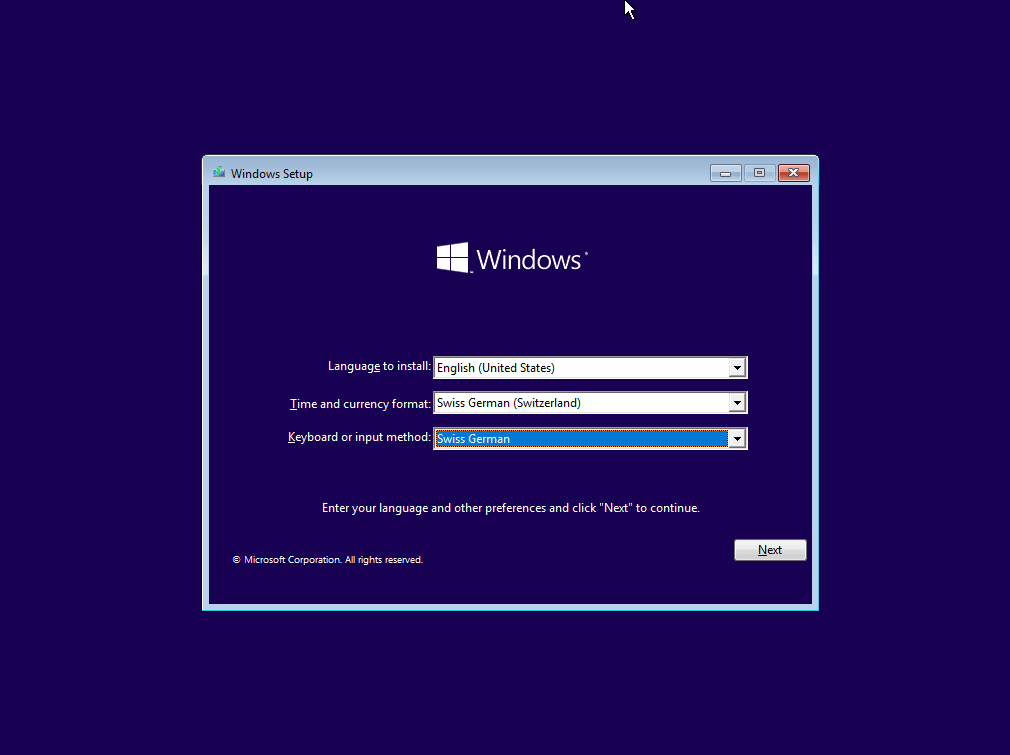
- Select your language, time, and keyboard layout
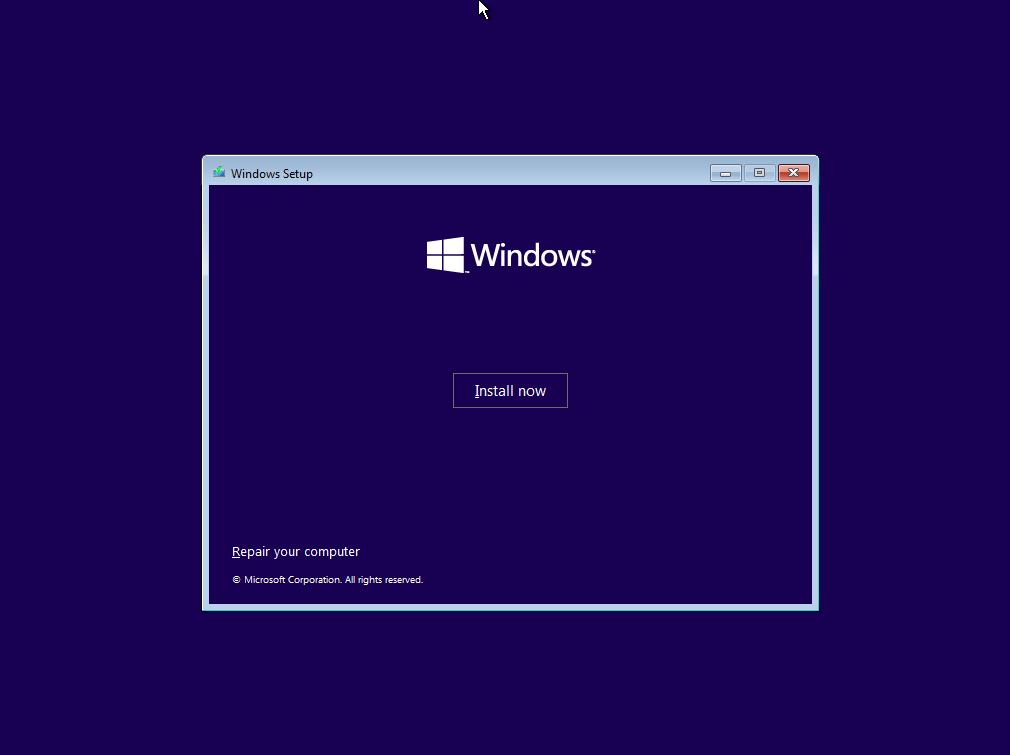
- Click the “Install now” button
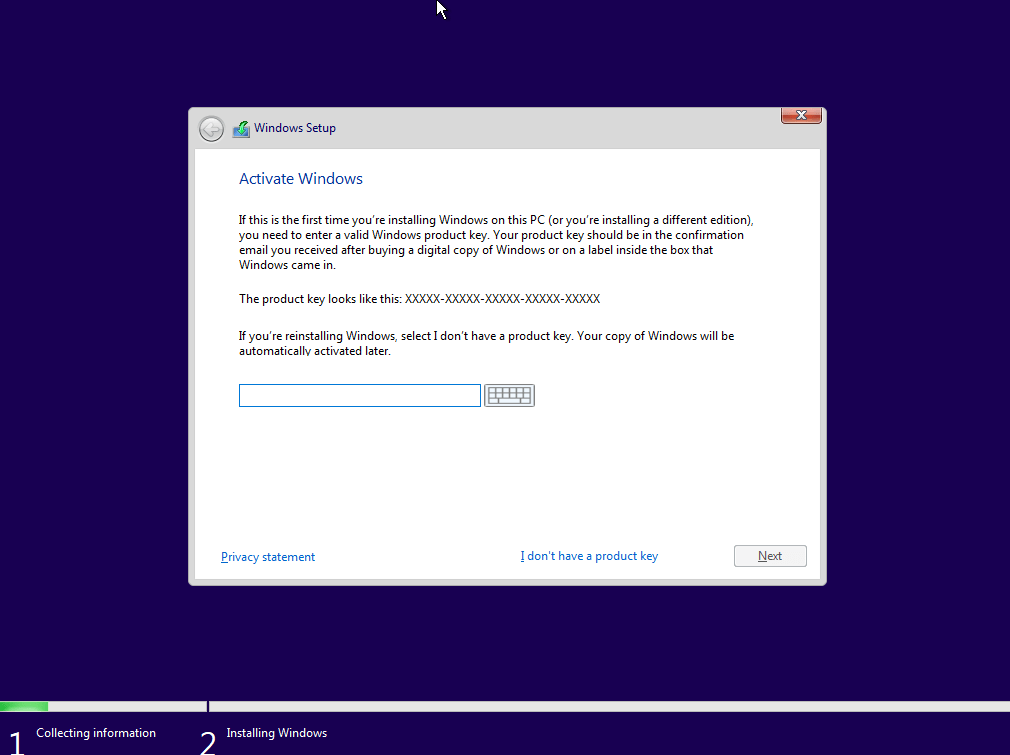
- If you have a product key, enter it here. If you don’t have one, click the “I don’t have a product key” button
- Select the OS you want to install.
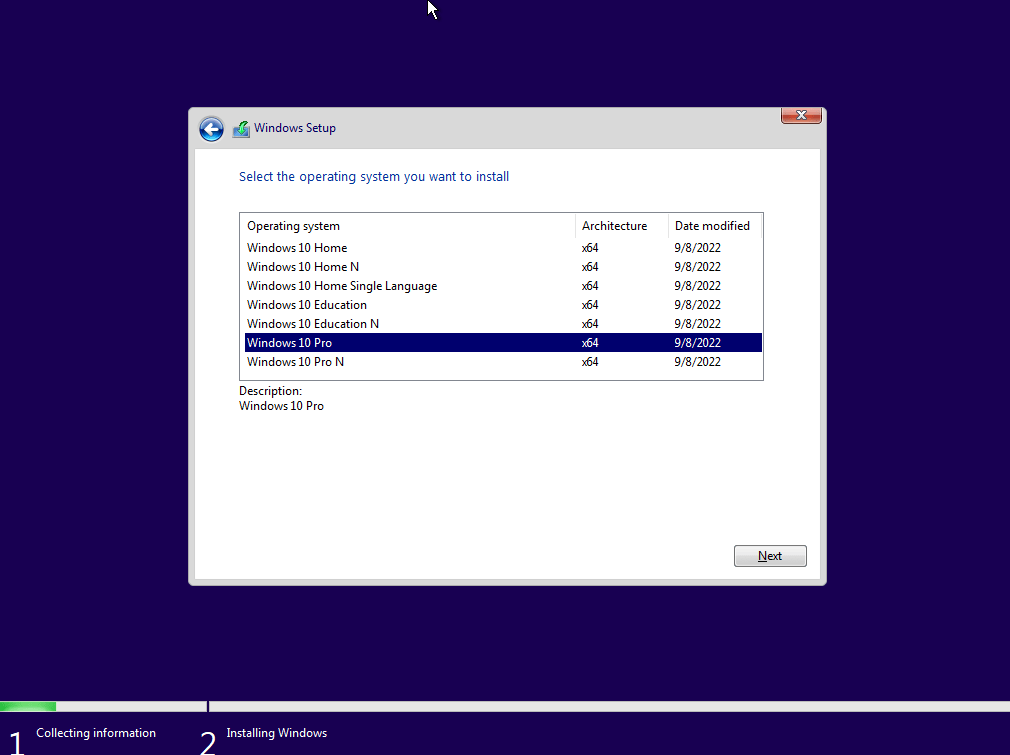
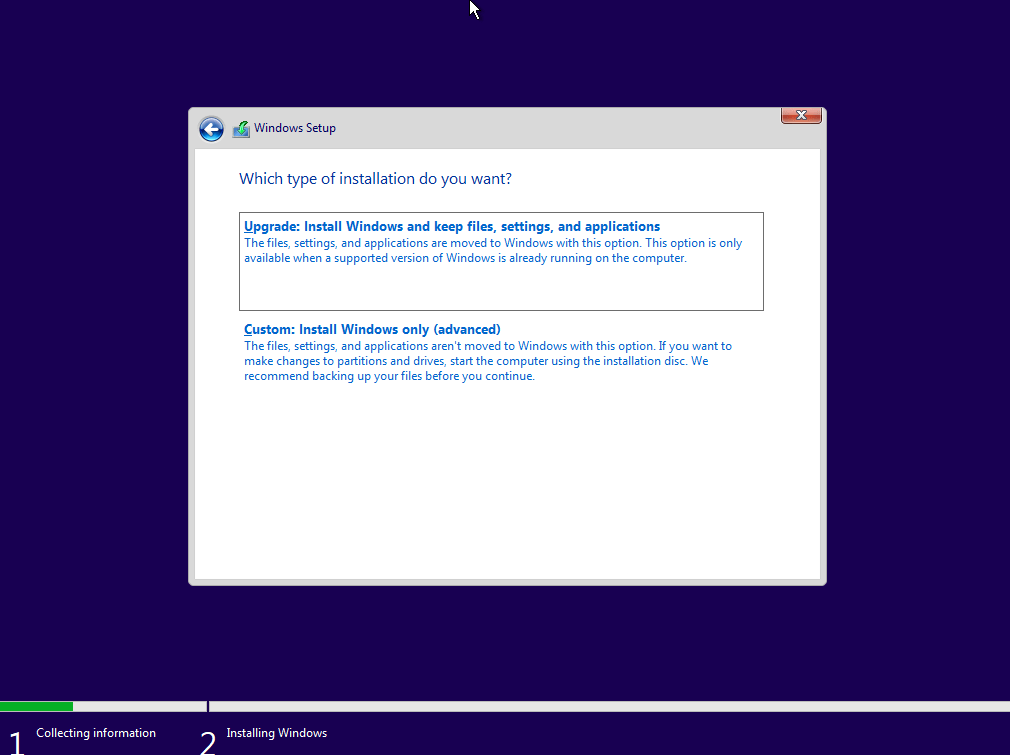
- Select the installation type. If you want to install Windows on a new computer, select the “Custom: Install Windows only (advanced)” option. Otherwise, select the “Upgrade: Keep my files, apps, and settings” option.
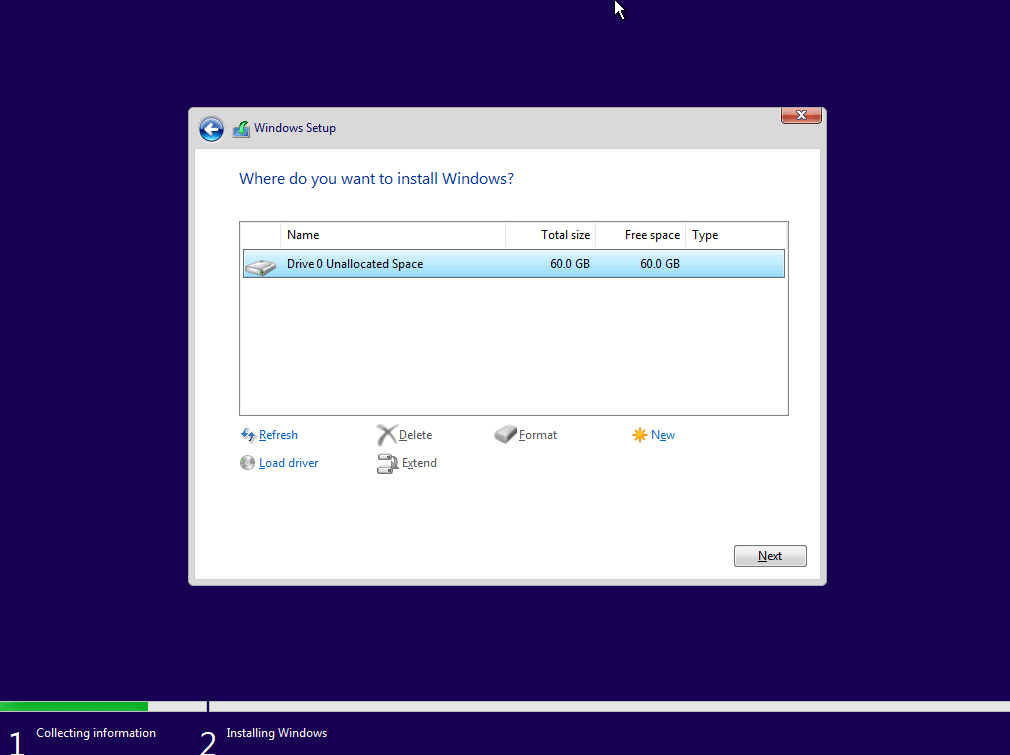
- Select the drive you want to install Windows on. To create a new partition, click the “New” button
- If you clicked the “New” button, it should look like this.
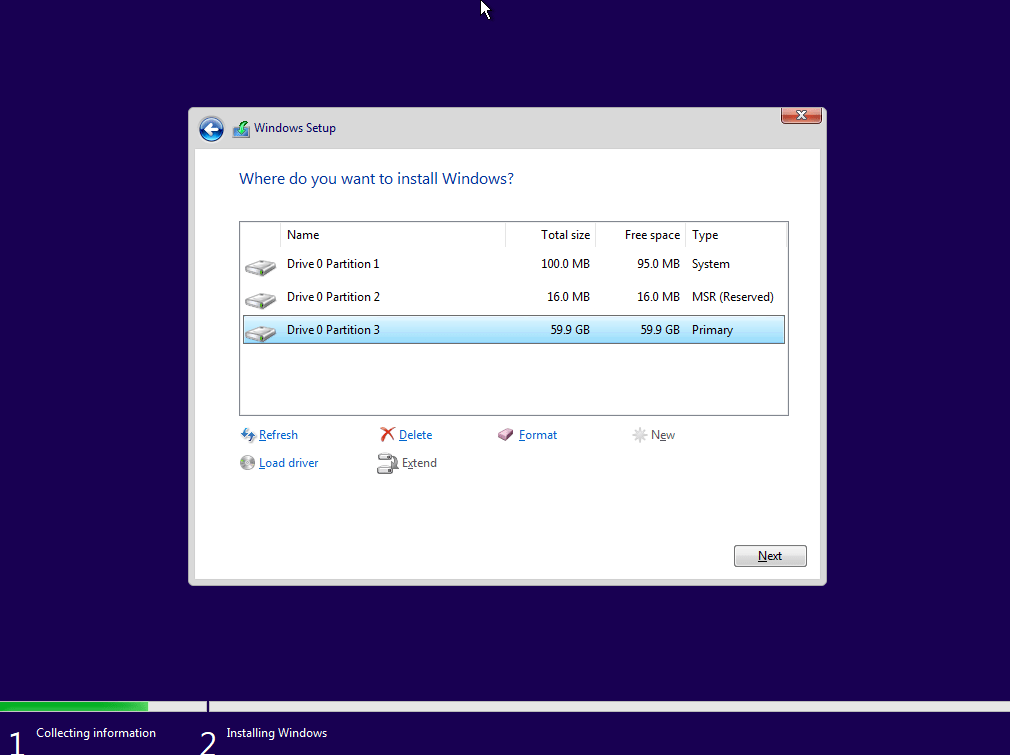
- Click the “Next” button and wait for the installation to finish
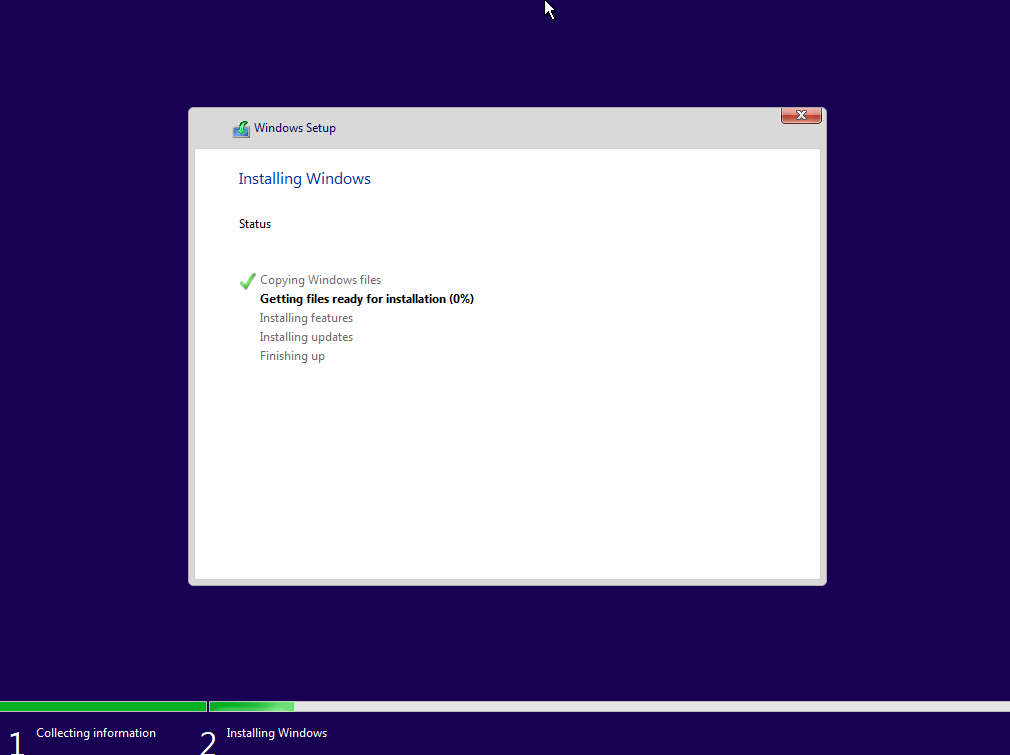
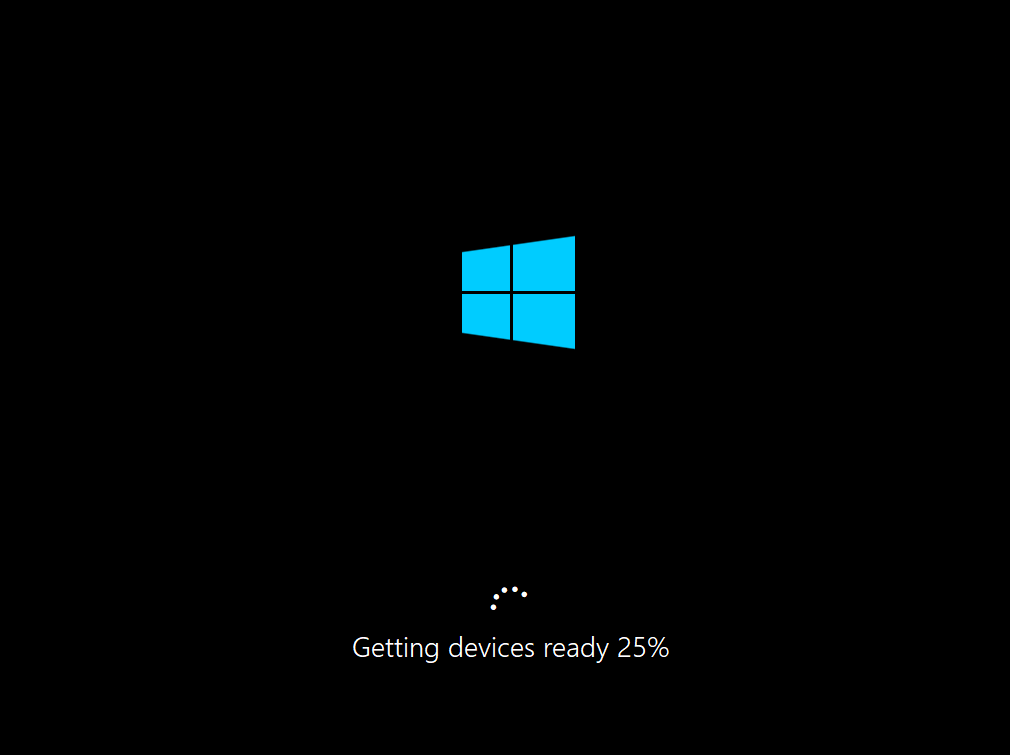
- When the installation is finished, the system will restart and show the following screen
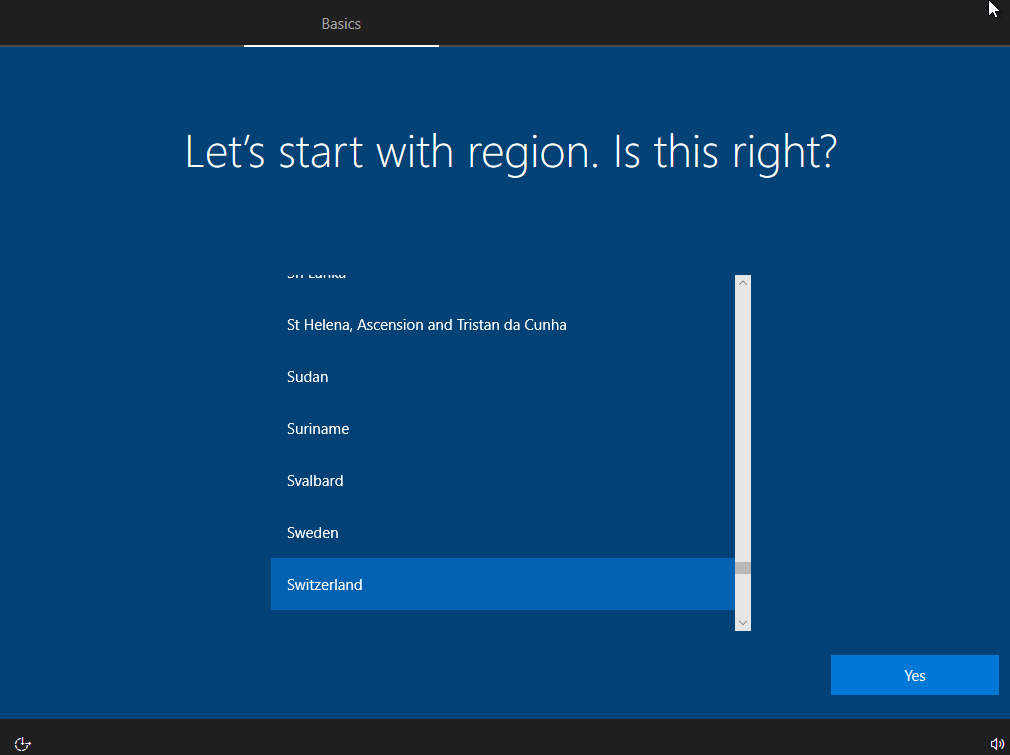
- Select your region.
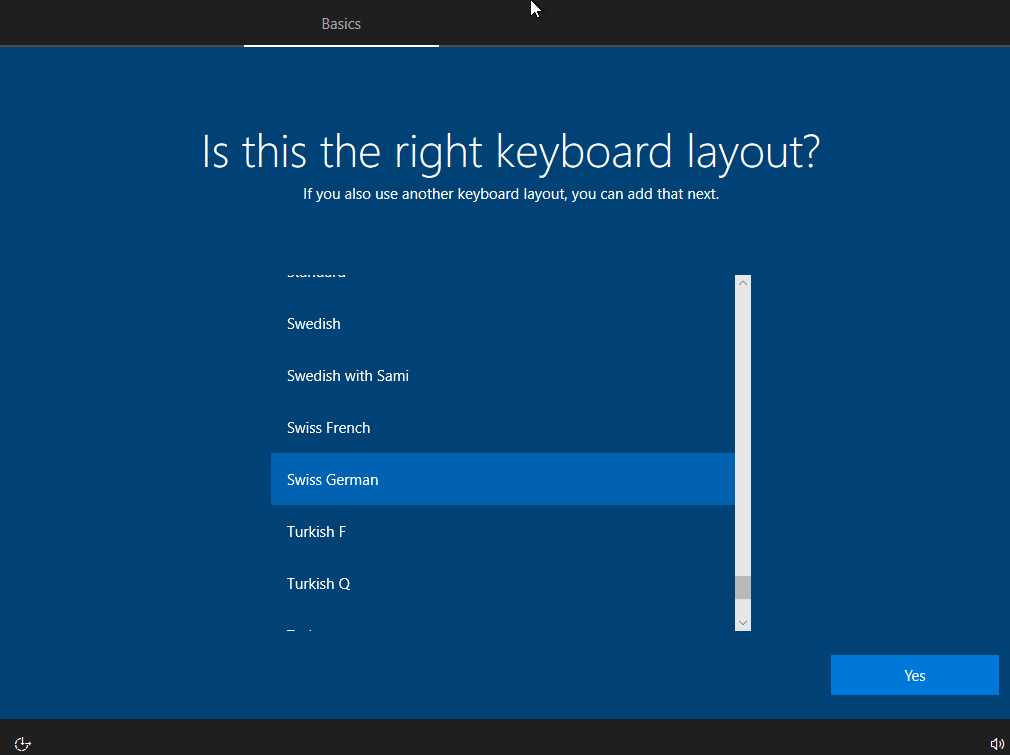
- Select your keyboard layout.
- Click the “Skip” button if you don’t want to add more keyboard layouts.
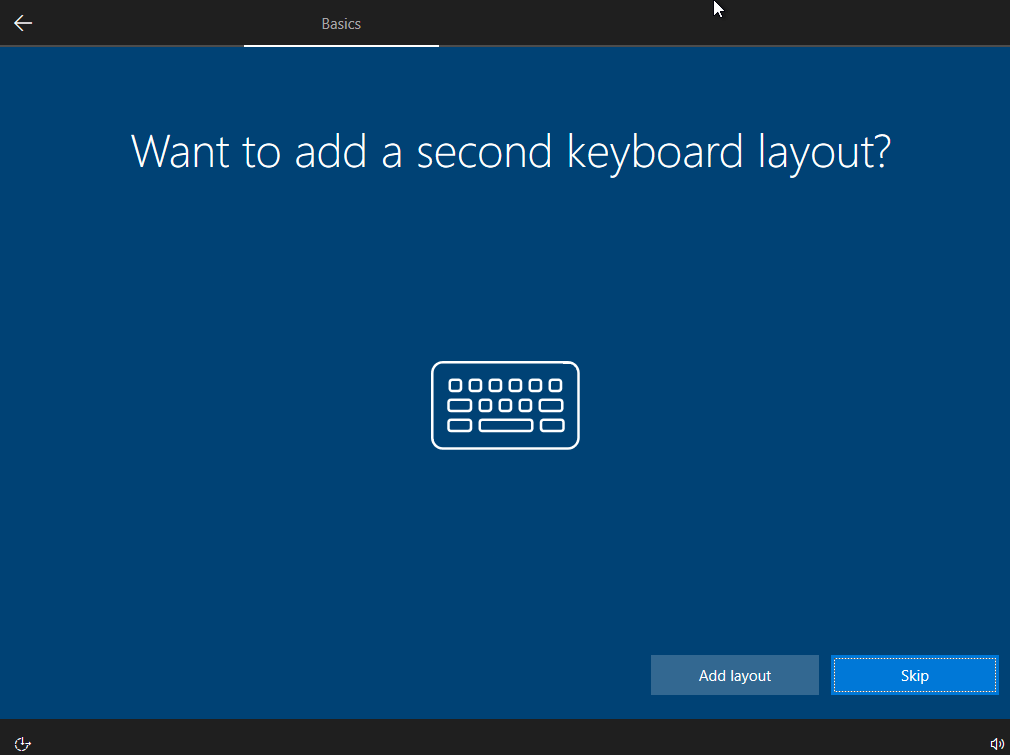
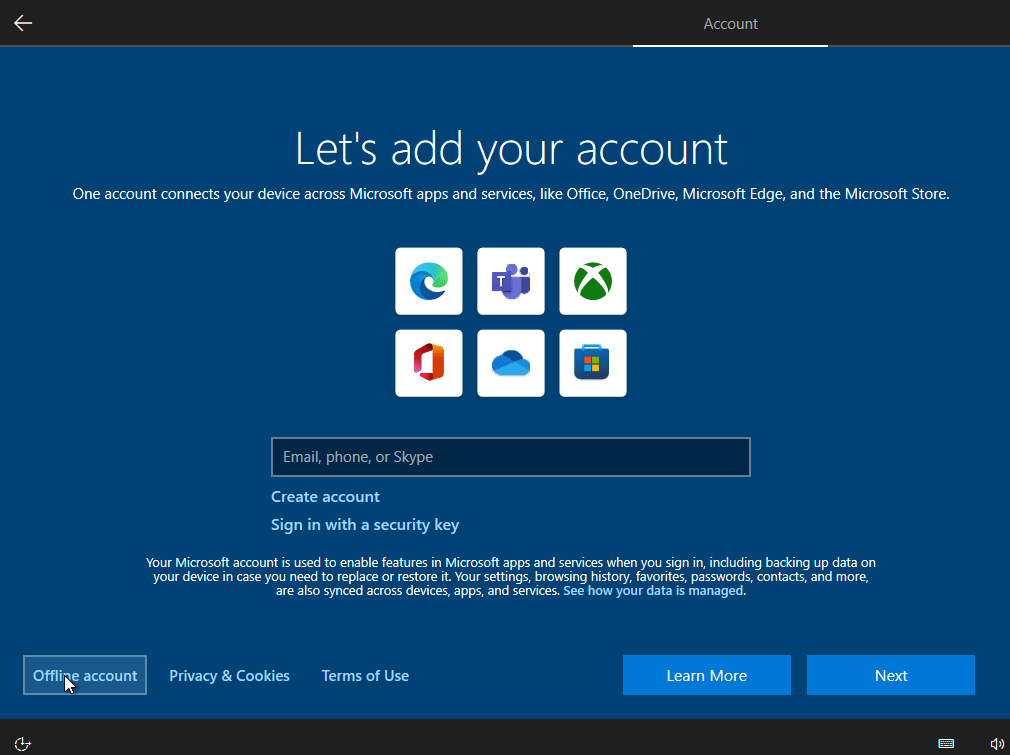
- If you don’t want to log in with a Microsoft Account, click the “Offline Account” button in the bottom left corner
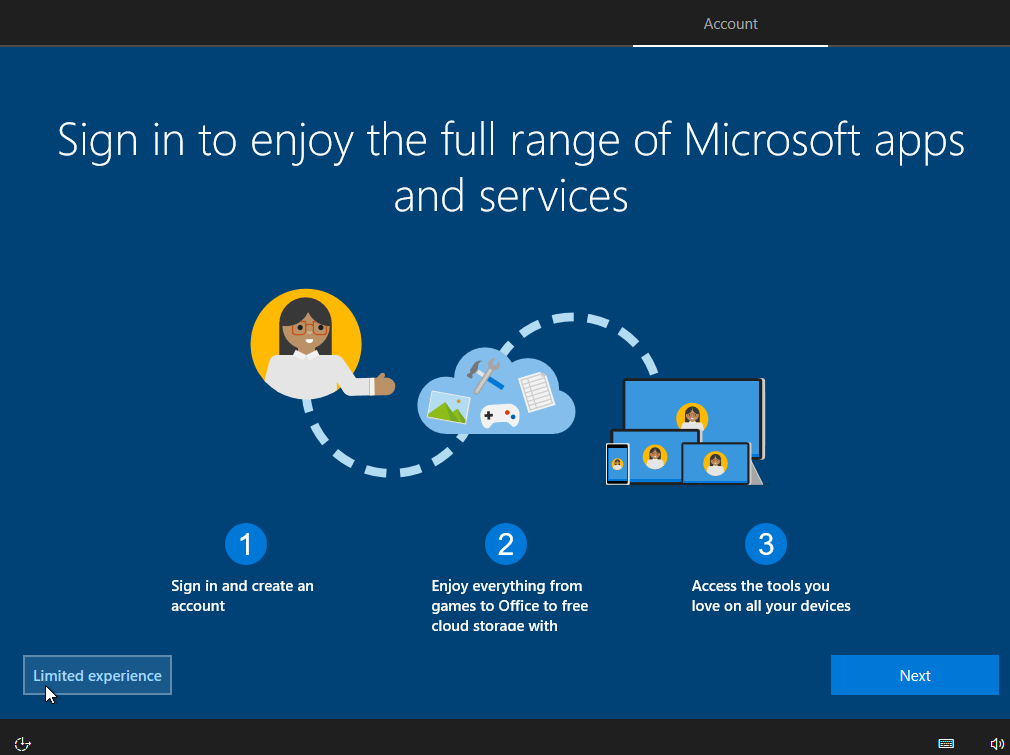
- Confirm that you want to use a local account.
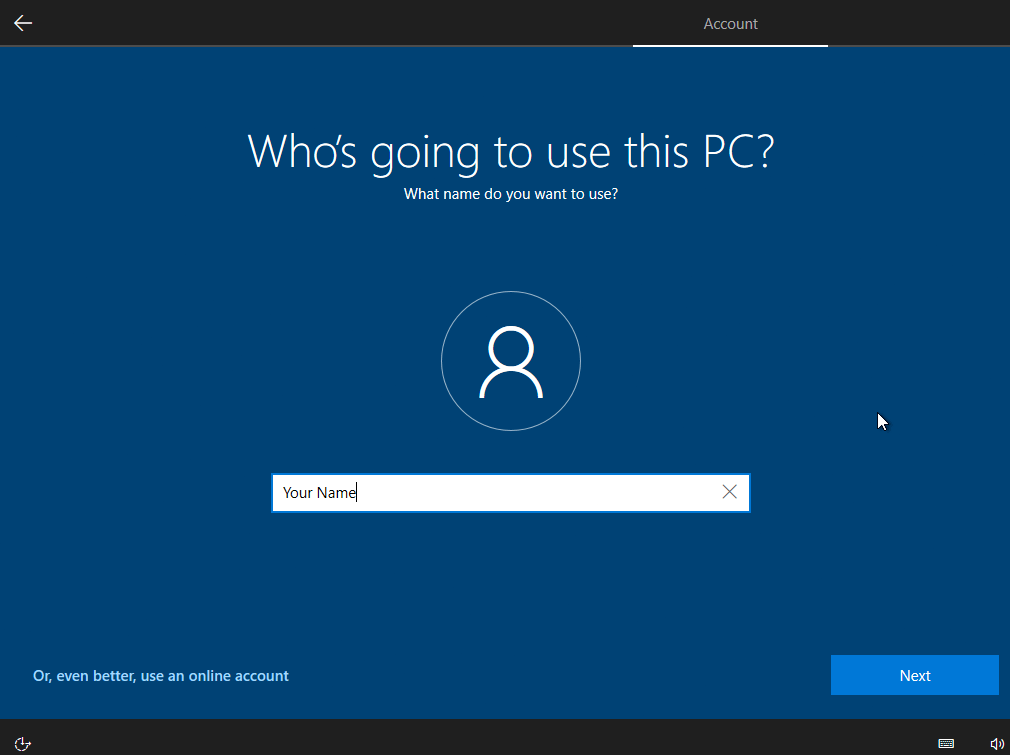
- Enter your name and click the “Next” button
- Create a password and click the “Next” button
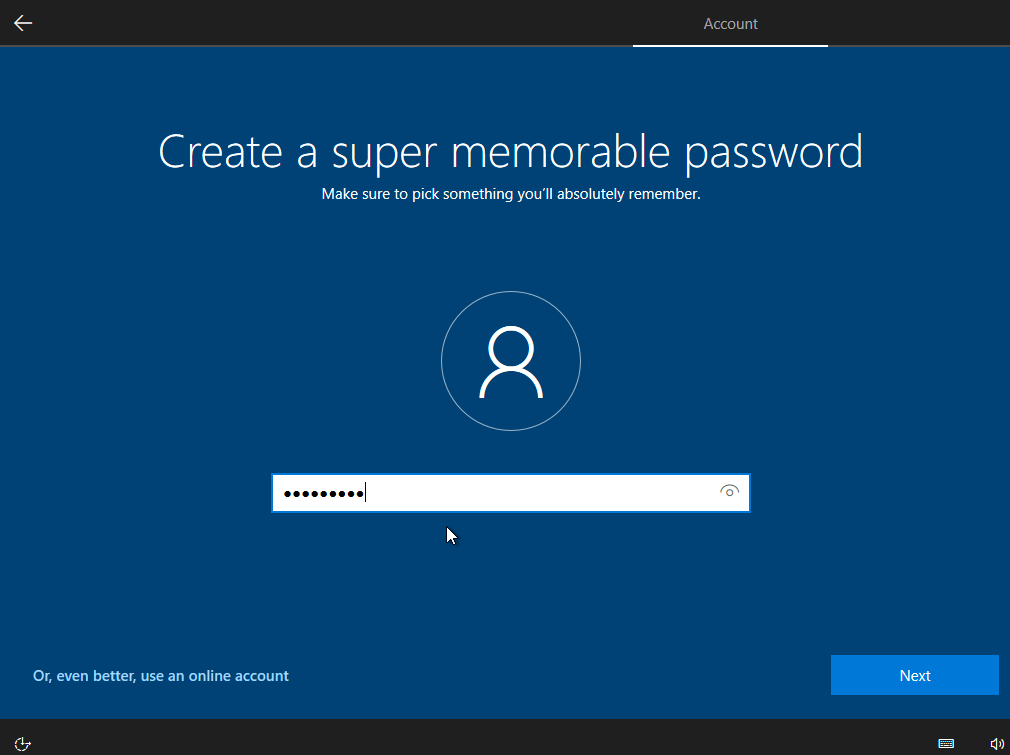
- Confirm your password and click the “Next” button
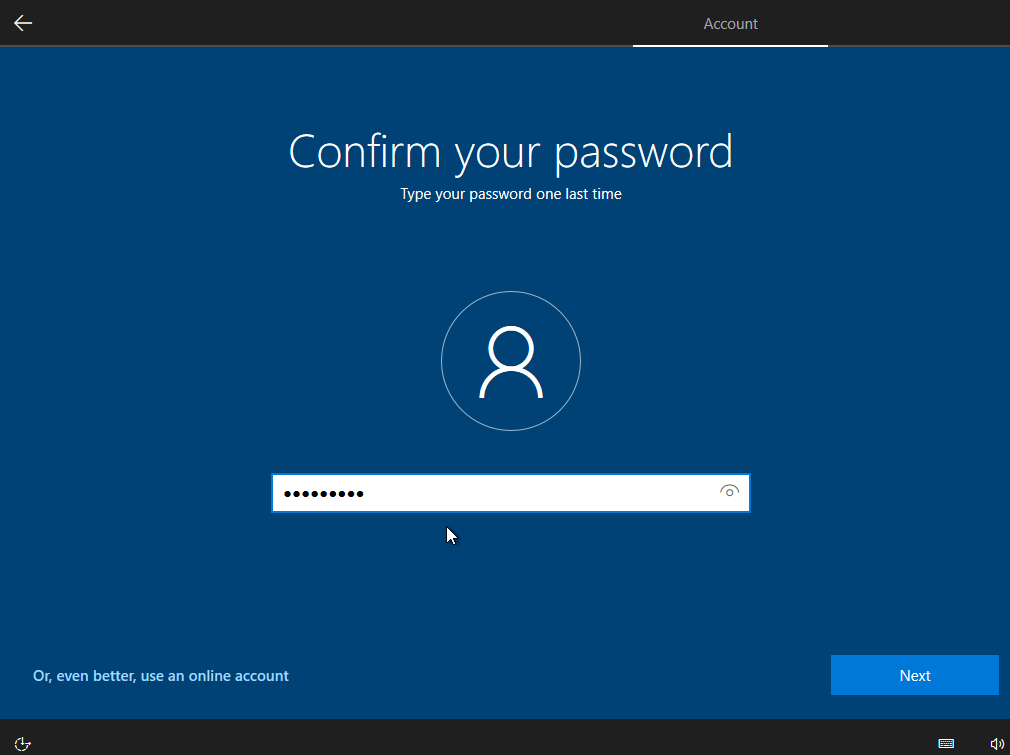
- Fill in the security questions and click the “Next” button.
- Then for the privacy settings, select for each option the 2nd option (the bottom one) and click the “Next” button
- If you are on the “Let’s customize your experience” screen, click the “Skip” button
- Wait until the setup is finished. This may take a while. After the setup is finished, enjoy your new Windows installation!
Conclusion
In this post, you learned how to set up Windows without a Microsoft Account using a local account.